iPhone Not Showing Recent Calls? Here’s How to Fix It

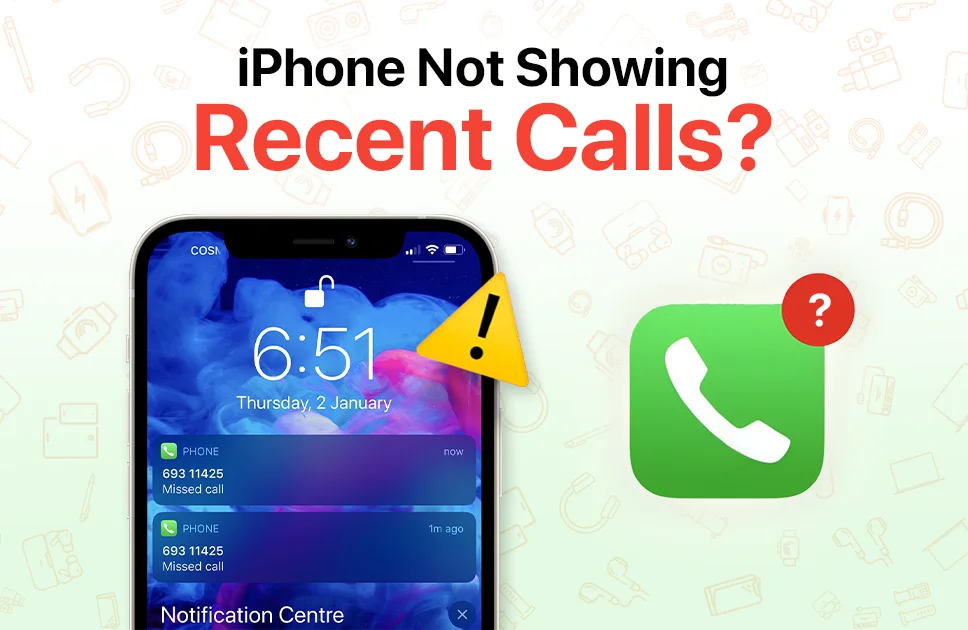
Frustrated about your iPhone not showing recent calls? You’re not alone. This issue affects many iPhone users, making it difficult to keep track of important conversations or return missed calls. The good news? There are several straightforward solutions you can try to get your call history back on track.
Here, we’ll explain to you the most effective fixes to restore your recent calls list, from simple restarts to more advanced solutions that you can use step by step.
Why Is My iPhone Not Showing Recent Calls?
Before going deep into the solutions, it’s best to understand why your i phone is not showing the recent calls. There can be several issues that can prevent your iPhone from displaying recent calls.
One of them is software glitches, temporary bugs after iOS updates can disrupt call logging. Many after updating to iOS 26 have found that the update made them lose recent calls history. Also if your settings are incorrect like wrong date, time, or region settings can affect call history.
Storage problems: Insufficient space can prevent your iPhone from saving call logs
iCloud sync issues: Problems syncing across devices can hide call history
Third-party apps: Call blocking or privacy apps may interfere with call logging
Now that you know the potential causes, let’s explore the solutions.
Quick Fixes to Try First
Let’s now look at some of the quick fixes that you can try then.Each fix addresses a common reason behind this problem, and most users find their call history returns after completing a few of these steps.
1. Restart Your iPhone
Sometimes the easiest solutions are the ones that work best. Usually the restart fixes the temporary glitches and refreshes your phone’s full system, which often solves the issue.
- Press and hold the side button along with either volume button until the power slider appears
- Slide it to the right to power off your iPhone
- Wait about 30 seconds until the screen is black
- Then, press and hold the side button again until the Apple logo appears
Once your iPhone restarts, open the Phone app and check if your recent calls are now visible.
2. Check Your Region Settings
Having your iPhone set to the wrong region can cause various issues, including missing call logs. Here’s how to verify and correct your region:
- Open Settings > General
- Select Language & Region
- Tap Region and scroll through the list
- Choose your correct region
- Tap Change to [Region Name] to confirm
If you have already selected a correct region then, try selecting a different region, then switch back to the correct one. This can also sometimes resolve your recent calls issue.
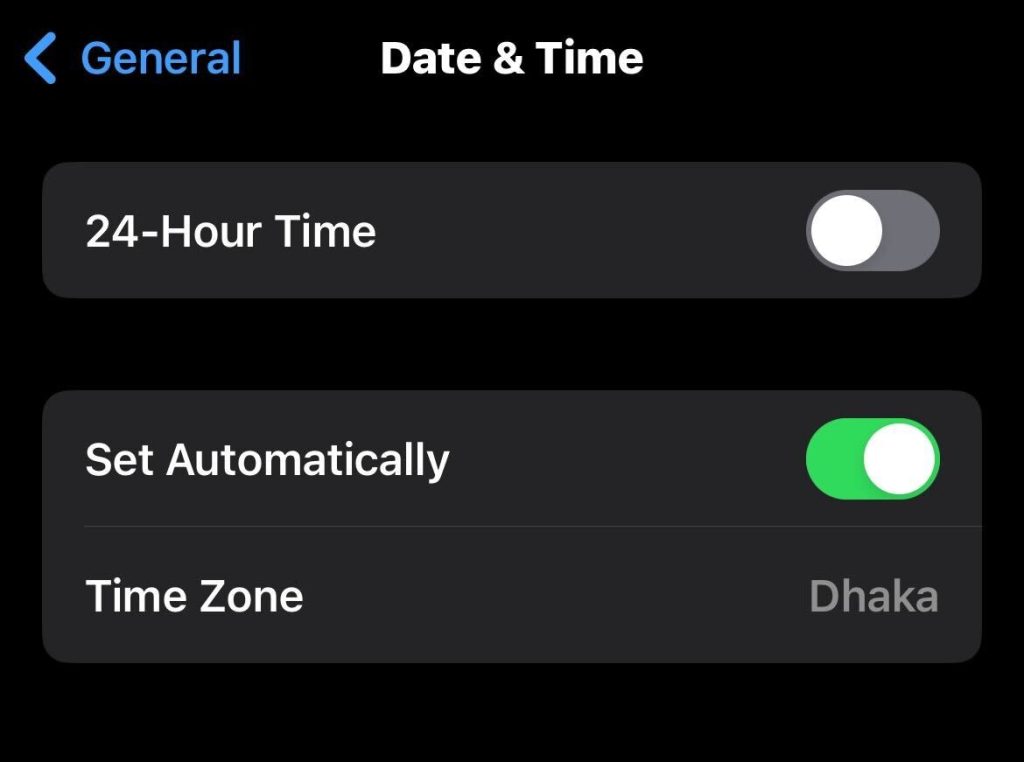
3. Set Date and Time Automatically
Incorrect date and time settings can be the issue on your call history. Your iPhone will need exact time & information to properly log and display calls.
- Open Settings > General
- Select Date & Time
- Turn on the Set Automatically.
Advanced Steps for Troubleshooting
If those advanced steps didn’t work for you then you can try more advanced steps.
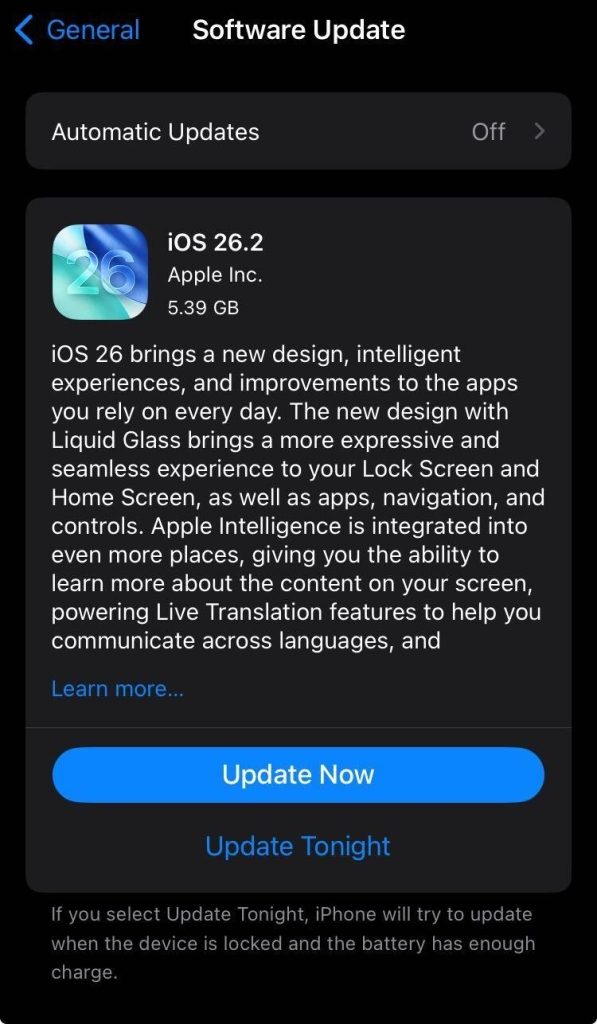
4. Update Your iOS
Running an outdated version of iOS can cause various problems, including missing call logs. Apple regularly releases updates that fix bugs and improve performance.
To update your iPhone:
- Go to Settings > General
- Select Software Update
- If you find any download available then Download and Install
- Then follow the on-screen instructions to complete the update
It might take some time to update your iOS, so if you are trying these steps you might need to wait a little more.
5. Reset Network Settings
This is a solution often ignored, however, many users who have struggled with the same problem have found resetting the network has solved their issues.
This solution has proven effective for many users struggling with missing recent calls. Resetting network settings clears out any corrupted network configurations that might be preventing proper call logging.
Important note: This will erase your saved Wi-Fi passwords, so make sure you have them handy.
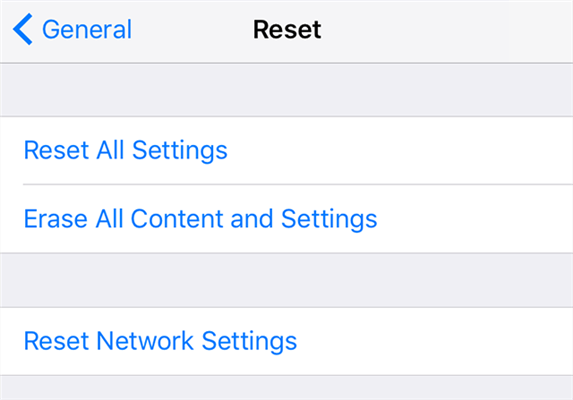
Here’s how to do it:
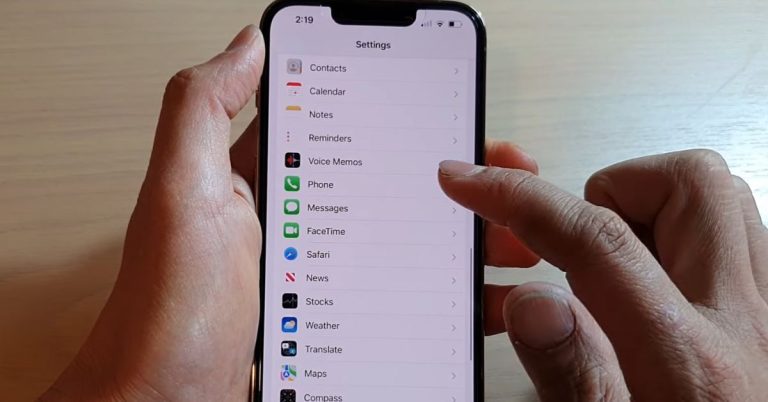
- Open Settings > General
- Scroll down and tap Transfer or Reset iPhone
- Tap Reset
- Select Reset Network Settings
- Enter your device passcode
- Confirm by tapping Reset Network Settings again
After the reset completes, your iPhone will restart. Reconnect to your Wi-Fi network and check if your recent calls are now displaying properly.
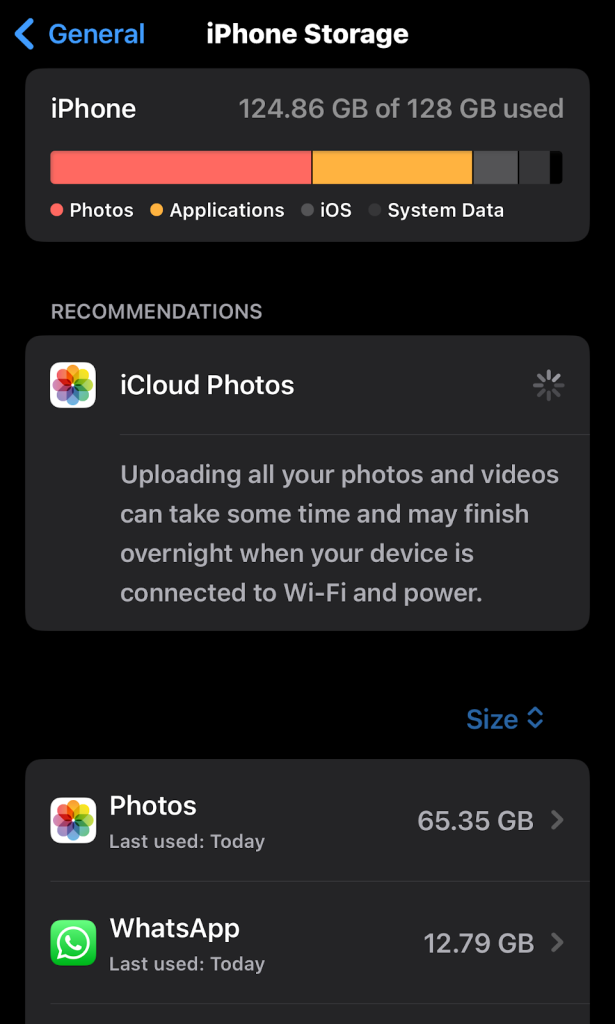
6. Free Up Storage Space
Your iPhone needs sufficient storage to save call history. If your device is running low on space, it may not be able to record new calls.
To check your storage:
- Go to Settings > General
- Select iPhone Storage
- Review which apps are using the most space
If you’re running low on storage, consider deleting unused apps, clearing old messages, or moving photos and videos to iCloud or your computer.
7. Check Call Blocking Settings
If you’ve enabled call blocking or filtering features, they might be preventing certain calls from appearing in your history.
- Open Settings >Phone
- Check Blocked Contacts to see if any numbers are blocked
- Swipe left on any contact you want to unblock and tap Unblock
- Also check Silence Unknown Callers as if it’s enabled, usually calls from unknown numbers won’t show up in your recent calls.
8. Enable iCloud Sync for Contacts
If you have multiple Apple devices, iCloud sync issues can prevent recent calls from appearing across all your devices.
- Go to Settings and tap your name at the top
- Select iCloud
- Toggle on Contacts to ensure call logs sync properly
This ensures your call history stays consistent across all your Apple devices.
When to Contact Professional Support?
If you’ve tried all these solutions and your iPhone still isn’t showing recent calls, it might be time to reach out for professional help:
- The problem persists after trying all troubleshooting steps
- You suspect a hardware issue with your device
- Your iPhone is still under warranty
- You’ve recently experienced other significant issues with your phone.
You can consider contacting Apple Gadgets Care as expert technicians are always available there to help you.
Read More: How to block a number on iphone
Tips on Preventing Future Call History Issues
Once you’ve fixed the problem, here are some tips that you can follow to prevent it from happening again. You can keep your iOS updated to fix that you regularly check or keep your automatic updated toggle on.
Also try to maintain sufficient storage around 1-2 gb free for your phone to run smoothly. Moreover, a mindful suggestion to weekly restart your phone, these will keep you from the minor glitches. Also regularly backup your device whenever you have time.
Final Thoughts
Having to deal with an issue like missing recent calls can be frustrating, but there are a lot of solutions that you try. Try from the quick fixes and then restart your device and check your settings. If still there’s an issue then go through the more advanced steps .
Usually following those steps would restore the call history. The key is that you can work on the solutions one by one and let each one have a fair chance to work. So that you can analyse which one works best for you.
FAQ
Mohammad Shariful Islam is the CEO and MD of Apple Gadgets, a leading e-commerce and retail chain for gadgets in Bangladesh. He has a passion for technology, entrepreneurship, and holds a decade of experience in gadget E-Commerce. He’s committed to providing the best possible shopping experience for customers by delivering the latest and trendy gadgets.