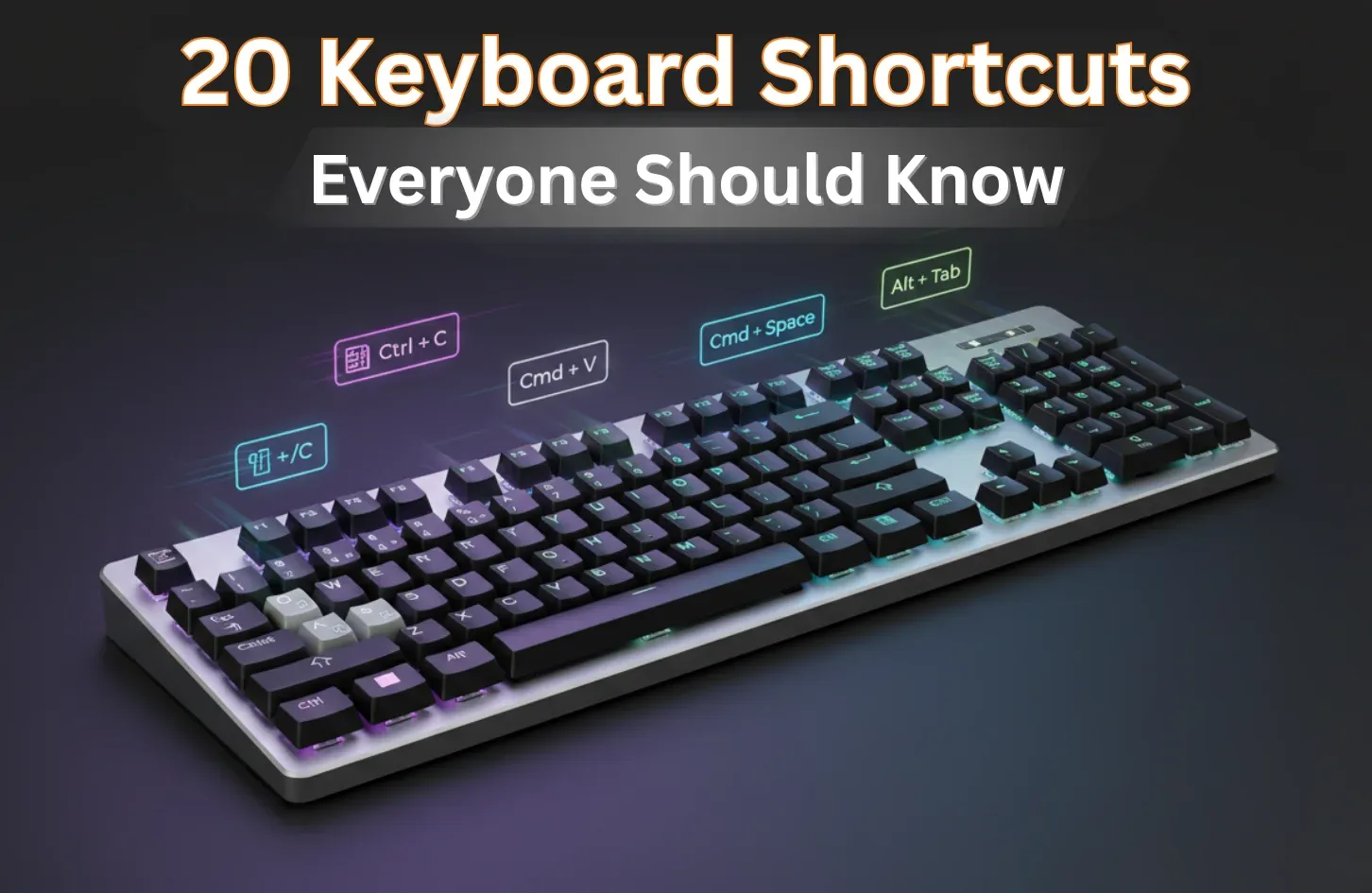
Top 20 Keyboard Shortcuts Everyone Should Know

It is not a secret that, when working on your computer, you have felt slow with constantly clicking in different places, opening and closing menus and tabs. Majority of people take much time doing simple tasks in a hard way, like copying the content, opening a closed tab, or even switching between apps. But the positive thing is there’s a little but handy solution that most people overlook, that is, keyboard shortcuts.
Basic shortcuts, like Ctrl + C to copy, Ctrl + V to paste, or Alt + Tab to switch between the apps that are currently open, may save you several seconds each time you use them. The seconds pass too fast and become minutes and hours. As soon as you get used to basic skills, you will notice the difference in speed, concentration, and productivity. Today, we will guide you to the 20 Keyboard Shortcuts that everyone needs to know, in a simple, everyday manner, so you can use them immediately.
Why Keyboard Shortcuts Matter in Everyday Use
To be honest, shortcuts can be used even by non-technical people. It’s for anyone, such as students working on their assignments, office employees working with papers, web browsers, and others who use a computer every day.
Using shortcuts helps you:
- Save time on repetitive actions.
- Work uninterrupted in a more productive way.
- Reduce reliance on the mouse.
- Keep you on track with what you are doing.
The fact is, even learning five or six shortcuts can also enable your day-to-day computer use to feel much faster and less frustrating.
Top 20 Keyboard Shortcuts Everyone Should Know
Frankly speaking, who does not wish to have some shortcuts in his or her life! Therefore, the following are the MOST USEFUL KEYBOARD SHORTCUTS that will not only save you time but also work across Windows and the majority of applications.
Universal Keyboard Shortcuts
Shortcuts that will work almost everywhere, whether you’re editing text, managing files, or browsing, just take a look.
- Ctrl + C – Copy selected text or files
- Ctrl + V – Paste copied content
- Ctrl + X – Cut selected items
- Ctrl + Z – Undo last action
- Ctrl + Y – Redo the last undone action
Productivity & Editing Shortcuts
These shortcuts are essential for writing, editing, and managing documents efficiently.
- Ctrl + A – Select all content
- Ctrl + S – Save current work
- Ctrl + F – Find text on a page or document
- Ctrl + P – Print documents quickly
- Ctrl + B – Bold selected text
Browser & Internet Shortcuts
To make web browsing faster and more controlled, you can use these keyboard shortcuts.
- Ctrl + T – Open a new browser tab
- Ctrl + W – Close the current tab
- Ctrl + Shift + T – Reopen the last closed tab
- Ctrl + L – Jump to the address bar
- Ctrl + R – Refresh the current page
Read More: How To Screenshot On A Laptop
System & Window Management Shortcuts
Manage all your apps and system functions more efficiently by using these shortcuts.
- Alt + Tab – Switch between open applications
- Alt + F4 – Close the active application
- Windows + D – Show or hide desktop
- Windows + L – Lock your computer
- Ctrl + Shift + Esc – Open Task Manager
Tips to Remember Keyboard Shortcuts Faster
Learning shortcuts doesn’t require memorizing everything at once. Start small and build habits.
- Pick 3 to 5 shortcuts and use them daily
- Replace mouse actions gradually
- Practice during real tasks instead of memorizing lists
- Repeat often until it feels natural
Within a few days, using these shortcuts becomes automatic for you.
Wrapping Up
Therefore, keyboard shortcuts may seem small, yet their effects are HUGE. They reduce the process of doing things that are not necessary, maintain a seamless workflow, and enable you to complete more with less time. There is no need to know the whole thing. Begin with a few, practice day by day, and add more.
As soon as these shortcuts will become a habit, you will consider it sluggish to operate a computer without them.
Frequently Asked Questions (FAQ)
1. Why Should I Use Keyboard Shortcuts Instead of a Mouse?
It saves time, it saves you from needless clicking and focus. Plus, it will assist you in getting your daily computer-related tasks accomplished more easily and less painfully.
2. Do Keyboard Shortcuts Work on All Computers?
The majority of the simplest keyboard shortcuts work with Windows computers and with most of the applications, but some can be erratic.
3. Are Keyboard Shortcuts Hard to Learn?
Not at all. As one uses keyboard shortcuts most of the time in their day-to-day activities, they become muscle memory and feel natural.
4. Which Shortcuts Should Beginners Learn First?
The best shortcuts to get beginners started with are copy, paste, cut, undo, save, and find shortcuts because they will be used nearly daily.
5. How Long Does It Take to Learn Keyboard Shortcuts?
You can learn basic shortcuts in a single day, but with regular practice, you’ll get really good at using them.
6. Can I Create My Own Keyboard Shortcuts?
Some systems and apps let their users create custom keyboard shortcuts that fit how you like to do things.
Rakib Md. Azhar Uddin is a seasoned tech enthusiast with a passion for cutting-edge innovations. With a keen focus on smartphones, gadgets, and laptops, he delves into the latest advancements in AI, AR/VR, and other emerging technologies. Armed with years of experience, Rakib explores the ever-evolving tech landscape, sharing insights and analysis with fellow enthusiasts worldwide.